
IPTV buffering is the single most common complaint streamers run into, and it's almost never random bad luck — it's usually one of four things: your connection, your device, your Wi-Fi setup, or your provider's servers. This guide walks through each one so you can find the actual cause instead of just restarting the app and hoping.
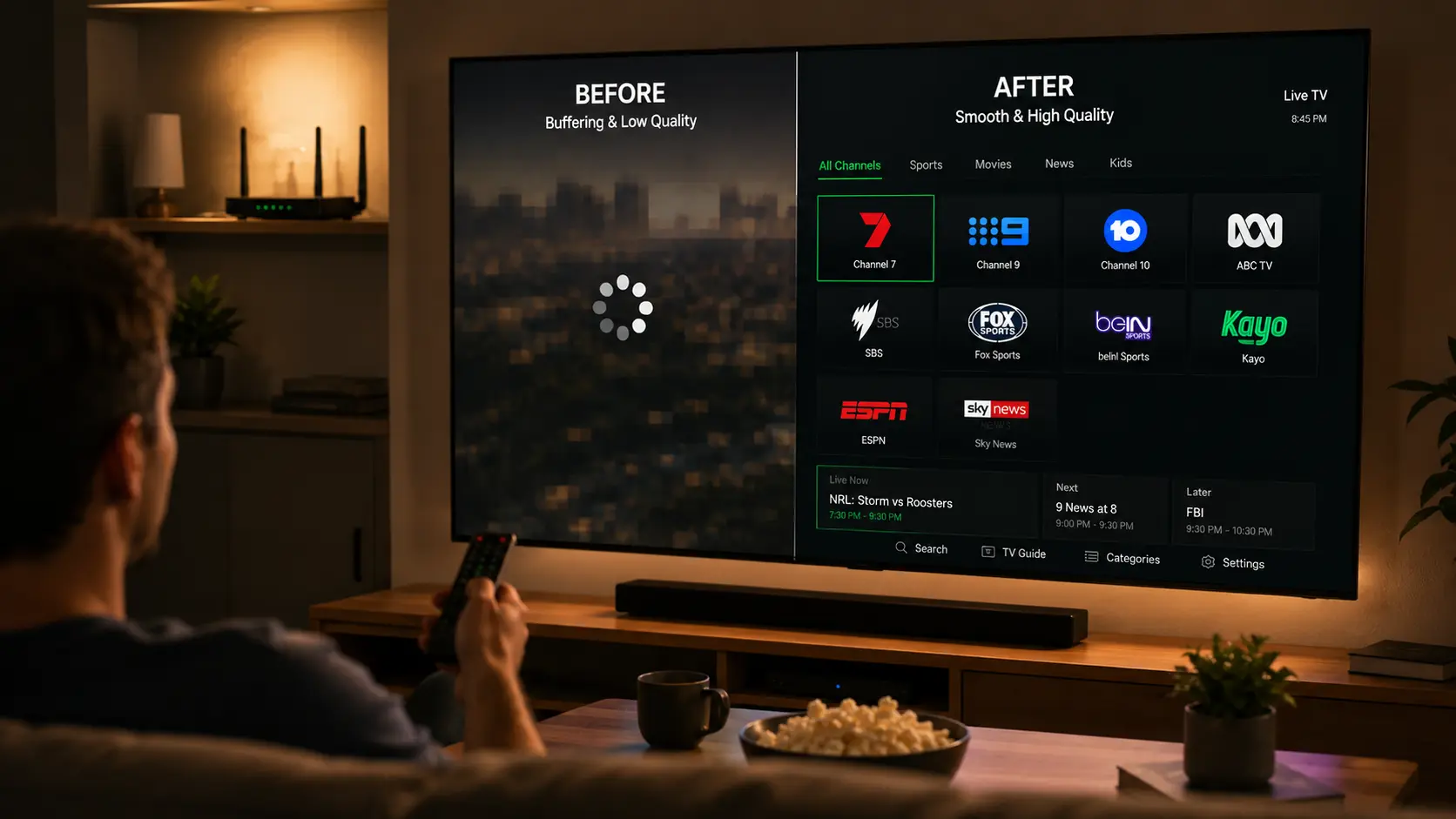
Common causes of IPTV buffering
| Cause | How common | Fix |
|---|---|---|
| Slow or unstable internet | Very common | Run a speed test, switch to Ethernet |
| Weak Wi-Fi signal | Very common | Move closer to router or use Ethernet |
| Overloaded provider servers | Common at peak times | Switch to an anti-freeze provider |
| Too many devices on the network | Common | Pause other streaming/downloads |
| Outdated player app | Occasional | Update the app |
| Mismatched stream quality | Occasional | Lower to HD/FHD on older hardware |
Step 1: Diagnose Your IPTV Buffering Quickly
Before diving deeper into IPTV buffering fixes, this narrows things down fast:
Try a different channel
If only one channel buffers, it's likely that specific stream — not your connection.
Try a different device
If it buffers on your phone too, the problem is your network or the provider, not the TV.
Try at a different time
If it's smooth at 2pm but buffers at 7pm, that points to peak-time server load.
Step 2: Check your internet speed
IPTV needs a consistently fast, stable connection — not just a high advertised plan speed. Run a speed test at the device you're streaming on (not just your router) and compare against these minimums:
- SD/HD streams — 10–15 Mbps minimum.
- Full HD streams — 15–25 Mbps recommended.
- 4K streams — 50 Mbps+ recommended, wired if possible.
Step 3: Fix your Wi-Fi setup
Move closer to the router
Walls, distance and interference all weaken Wi-Fi signal strength.
Switch to 5GHz where possible
5GHz is faster and less congested than 2.4GHz, though shorter range.
Use Ethernet if you can
A wired connection all but eliminates Wi-Fi-related buffering — especially worth it for a main TV.
Restart your router
A quick reboot clears congestion that builds up over days of uptime.
Step 4: Check your device
- Update your player app — IBO Player, TiviMate and IPTV Smarters Pro all regularly ship stability fixes.
- Restart the device — clears memory and often resolves short-term stutter.
- Close background apps — other apps competing for bandwidth or processing power can cause stutter.
- Check device age — older Smart TVs and boxes can struggle to decode 4K smoothly; try FHD instead.
Step 5: Rule out the provider's servers
If your connection tests fine, your Wi-Fi is solid and other devices stream cleanly, the remaining cause is almost always the provider's server capacity. This is exactly what anti-freeze servers are built to solve — enough server capacity that thousands of subscribers streaming the same live match doesn't degrade quality for anyone.
Why live sport buffers more than anything else
Buffering spikes hardest during major live sport because that's when the most subscribers are watching the same stream at once — server load is at its absolute peak exactly when reliability matters most. This is the clearest real-world test of whether a provider's server capacity is actually built to handle demand, rather than just handling quiet weekday viewing.
Best Player Settings to Prevent IPTV Buffering
- Match stream quality to your connection — don't force 4K on a connection that can't sustain it.
- Enable buffer/cache settings — most player apps let you increase buffer size slightly for smoother playback on unstable connections.
- Avoid streaming on multiple devices at once — on a shared connection, simultaneous 4K streams add up fast.
- Keep firmware updated — Smart TV and Fire TV firmware updates often improve streaming performance.
Key takeaways
- Buffering is almost always your connection, your Wi-Fi, your device, or the provider's servers — test each in order.
- If other devices and channels are fine but one thing buffers, isolate that variable first.
- Peak-time sport is the real stress test for a provider's server capacity.
- If everything else checks out, switch to a provider with anti-freeze servers.
Related IPTV guides
Frequently asked questions
Why does my IPTV keep buffering?
Buffering is almost always caused by connection speed/stability, weak Wi-Fi, an overloaded device, or the provider's server capacity being overwhelmed during peak times.
How much internet speed do I need for IPTV?
At least 10–15 Mbps for SD/HD, 15–25 Mbps for Full HD, and 50 Mbps+ for smooth 4K streaming.
Why does IPTV buffer more during sport?
Live sport draws the highest simultaneous viewership, which is the hardest test of a provider's server capacity — this is when weak servers show it first.
Does Ethernet fix IPTV buffering?
Often, yes. A wired connection removes Wi-Fi interference and signal drop entirely, which is one of the most common buffering causes.
What are anti-freeze servers?
Servers with enough capacity to handle peak-time demand — like thousands of viewers watching the same live match — without degrading stream quality.
Tired of IPTV buffering during live sport?
Switch to anti-freeze servers built to handle peak-time demand. Plans start from $14.99/month with a 7-day money-back guarantee.
Get Started with Best IPTV →